
Have you ever felt frustrated looking at a single clumped line of JSON data while checking API responses? Or have you spent over 30 minutes debugging only to find a missing comma? Every developer has faced this situation at least once. Stop wasting your time now.
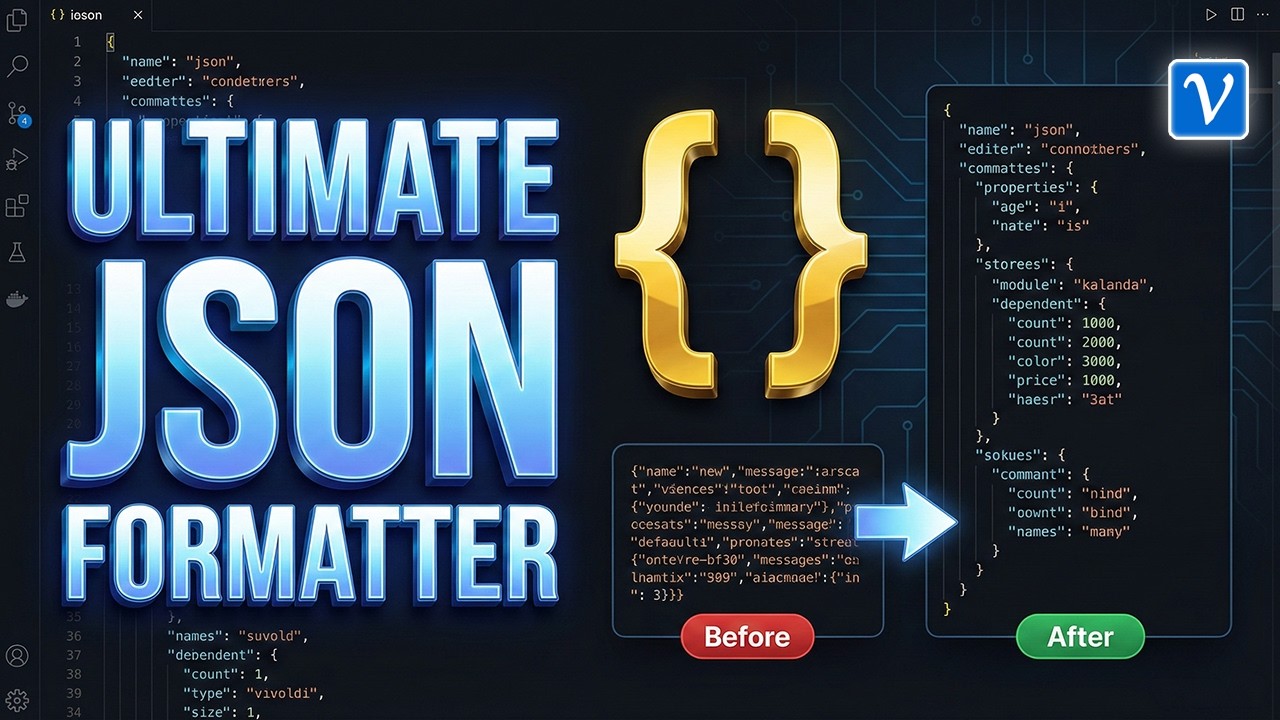
The Vivoldi JSON Formatter introduced today is an all-in-one development tool that goes beyond simple alignment to provide real-time syntax checking, various format conversions, and data protection via browser local storage. Discover how to maximize your JSON workflow efficiency through this article.

Why is a Professional JSON Formatter Necessary?
Many developers use online JSON formatters, but they come with several critical issues.
- Security Concerns: Sending JSON containing sensitive API keys or user data to external servers is risky.
- Limited Functionality: They often only provide simple alignment and lack practical features like compression, conversion, or key sorting.
- Debugging Difficulties: Even when syntax errors occur, they don’t pinpoint the exact location, forcing you to find it manually.
Vivoldi JSON Formatter solves all these problems at once. Data is stored solely in your browser, and a powerful Toolbox allows you to automate various tasks.
Intuitive Dual Editor System
The most significant feature of Vivoldi JSON Formatter is its dual editor system, consisting of a left input editor and a right result viewer.
Immediate Feedback with Real-time Synchronization
The moment you paste or type JSON data into the left editor, the formatted result appears in real-time on the right. You can check your work instantly, just like viewing a live preview.
The right editor is designed as read-only, so you don’t have to worry about accidentally altering the formatted data. All edits happen only on the left, keeping the workflow clear.
Efficient Comparison with Scroll Synchronization
A particularly useful feature when handling large JSON files is Scroll Synchronization. The scroll bars of both editors move together, allowing you to check a specific part of the original data and the formatted result simultaneously.
For example, keeping this feature on when checking if a specific field in an API response was parsed correctly speeds up the work by more than 2x.

Powerful Data Processing Toolbox
Alignment alone is not enough. In practice, you need to compress data, escape characters, sort keys, and more. Vivoldi JSON Formatter provides a Toolbox that handles all these tasks with one click.
Copy - Use Formatted Results Instantly
You can copy the formatted JSON data directly to the clipboard. It’s done with a single button press, without needing to select text separately.
Compress - Minimize Size
Removes all unnecessary whitespace and line breaks from JSON data to minimize size.
This is useful for reducing API request payload sizes or lightweighting configuration files.
// Before (79 bytes)
{
  "name": "John",
  "age": 30,
  "city": "Seoul"
}
// After (38 bytes)
{"name":"John","age":30,"city":"Seoul"}
As shown in the example above, you can reduce the size by over 50% with just one click of the compress button.
Escape - Automate Code Insertion
There are many times when you need to insert JSON data as a string into JavaScript or Java code. Manually escaping quotes in these cases is cumbersome and error-prone.
The Escape function automatically processes all quotes and even copies the result to the clipboard at once. You no longer need to manually add backslashes.
Key Sort - Structured Data Management
You can sort the keys of a JSON object alphabetically. You can sort only the root level or sort in ascending/descending order based on specific keys.
Especially when managing JSON with many keys, like configuration files (config.json) or multi-language resource files, using the key sort function significantly improves readability and maintainability.

Diverse Format Support and Visualization
Free Conversion between JSON, XML, and YAML
Vivoldi JSON Formatter supports not only JSON but also XML and YAML formats. You don’t need to look for separate tools when you need to convert the same data into different formats.
- JSON → XML: For integration with legacy systems
- JSON → YAML: For creating Kubernetes configuration files or CI/CD pipelines
- XML/YAML → JSON: For modern API development
Understand Complex Structures with Tree View Mode
When dealing with complex JSON data deeper than 5 levels, it is difficult to grasp the structure just by looking at the text form.
At this time, activating Tree View Mode allows you to visually expand and collapse the hierarchical structure, making data exploration much easier.
Since you can expand only the necessary parts just like opening and closing folders in a file explorer, it is especially useful when analyzing large API responses.
Check Data Statistics with Info Feature
You can check various statistics about the JSON data you are working on at a glance.
- Total Data Size (Bytes)
- Number of Keys
- Max Depth
- Number of Arrays
This information can be used as a baseline metric for data structure optimization or performance tuning.

Security and Convenience Simultaneously with Browser Local Storage
Protect Work with Auto-Save
No need to worry even if you accidentally close the browser or refresh the tab. Vivoldi JSON Formatter automatically saves the data you are working on and your environment settings (font, theme, etc.) to the browser.
When you open the page next time, your previous work remains intact, allowing you to continue working naturally as if using a local application.
Manage Frequently Used Data Snapshots with Favorites
There are times when you want to save JSON data from a specific point in time. For example, API response samples by version or mock data for testing.
Vivoldi JSON Formatter supports up to 10 favorites. If you save frequently referenced JSON structures as favorites, you can recall and reuse them with one click at any time.
Complete Privacy Guarantee
The most important point is that all data is saved only in the user’s browser.
Since it is not transmitted to a server, you can safely use JSON files containing sensitive information.
⚠️ Note: Because it uses the browser’s local storage, the saved data exists only on that browser (device). Please note that it cannot be accessed from other computers or browsers.
Local File Upload & Direct URL Import
There are various ways to input JSON data.
- Direct Paste: The most basic method
- Local File Upload: Drag and drop .json files stored on your computer
- Import External URL: Enter an API endpoint address to automatically fetch the response
The URL import feature is particularly convenient when you want to quickly check real-time API responses.
Shorten Debugging Time with Real-time Syntax Check
The most time-consuming part of JSON work is finding syntax errors. This is because omitting a single comma or bracket prevents the entire data from being parsed.
Vivoldi JSON Formatter provides a Real-time Syntax Check feature. If an error occurs, it immediately displays the following information:
- Exact Line Number
- Error Type (e.g., "Expected ’,’ or ’}’", "Unexpected token")
- Highlighting of the Corresponding Line
Finding JSON errors in a regular text editor requires visually tracking line by line, but using this tool allows you to reduce debugging time by over 80%.

Developer-Friendly UX Details
Instant Light/Dark Theme Switching
For developers who look at code for long periods, theme selection is directly related to eye health. Vivoldi JSON Formatter allows you to switch between Light Mode and Dark Mode with one click.
Switch to Light Mode when working in bright places, and Dark Mode in dark environments to minimize eye fatigue.
Font and Size Customization
Code readability depends on each person’s preferred font and size. If you select your desired font family and size in the settings, this configuration is also automatically saved in the browser and maintained the next time you connect.
Practical Application Scenarios
Scenario 1: API Response Debugging
While developing a backend API, you received feedback from the frontend team saying "The data looks weird." You checked the response with Postman or curl, but it’s hard to grasp the structure because it’s clumped in one line.
Solution: Paste the response JSON into the Vivoldi Formatter and switch to Tree View mode to see at a glance which fields are null or if the array order is correct.
Scenario 2: Inserting JSON Strings into Code
You need to declare JSON data as a string in JavaScript code, but manually escaping quotes is annoying.
Solution: Enter the JSON data and click the ’Escape’ button to copy it to the clipboard in a form that can be pasted directly into the code.
const data = "{\"name\":\"John\",\"age\":30}";
Scenario 3: Analyzing Large Configuration File Structures
You need to find a specific setting value in a config.json file with hundreds of lines, but text search alone makes it difficult to understand the context.
Solution: Open the file in Tree View mode and expand only the necessary sections to quickly find the desired value. Use the ’Info’ feature to check the total number of keys and depth to determine if structure optimization is needed.
Advantages Compared to Other JSON Tools
| Feature | Generic Online Formatter | Vivoldi JSON Formatter |
|---|---|---|
| Real-time Syntax Check | ❌ | ✅ |
| Local Data Storage | ❌ (Sent to Server) | ✅ (Browser Local) |
| Format Conversion (XML/YAML) | ❌ | ✅ |
| Tree View Visualization | ⚠️ (Partial Support) | ✅ |
| Key Sort Function | ❌ | ✅ |
| Auto-Save & Favorites | ❌ | ✅ |
Of course, Vivoldi JSON Formatter has some paid features, but all core functions are available, making it usable for individual developers or small teams without burden.
3 Steps to Start Right Now
No complex installation process or sign-up is required to use Vivoldi JSON Formatter.
- Access via Web Browser: Use immediately without separate installation
- Paste JSON Data: Input API responses or configuration file contents
- Execute Desired Function: Perform necessary tasks like sort, compress, escape, key sort, etc.
Work is automatically saved, so you can return and continue working at any time.
Conclusion: Work Smart with JSON Now
A developer’s time is precious. Instead of wasting time manually organizing JSON formats and finding syntax errors,
focus on core tasks by utilizing Vivoldi JSON Formatter.
You can reduce debugging time by 80% with real-time syntax checking, eliminate repetitive tasks with automated compression/escaping, and even ensure data security with browser local storage.
Moreover, with support for XML/YAML conversion and Tree View visualization, you can handle all data format tasks with a single tool.
💡 Pro Tip: Save frequently used API response structures or configuration file templates to your favorites. You can recall and use them immediately whenever you start a new project.
Triple your development productivity with Vivoldi JSON Formatter starting today. Your JSON work will become much more pleasant.


