
Have you ever wanted to put everything into a single Instagram bio link?
Introducing new products, blog posts, YouTube videos, and social media channels. Many of you can relate to the frustration of needing to deliver multiple contents simultaneously when you can only share one link.
"Link in Bio" services emerged to solve this problem, but often their designs are monotonous, click tracking features are lacking, or modifying the layout ultimately requires coding.
In this article, we will guide you step-by-step on how to use Vivoldi’s Card Link feature to build a multi-link page with images and descriptions without coding, freely control the layout using URL parameters, and precisely track individual card clicks.
If you are a marketer, creator, or online store operator, this is highly practical information you can apply to your workflow immediately.
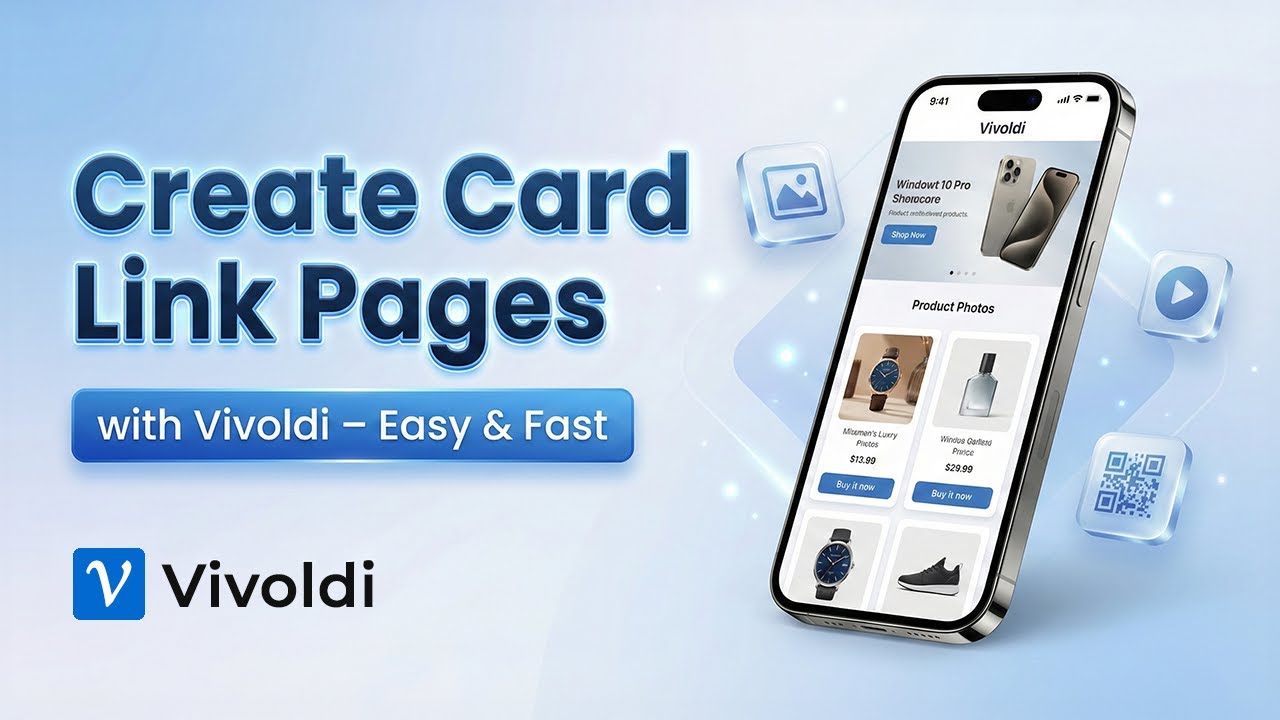
What is a Card Link?
A Card Link is not just a list of URLs; it is a feature that groups multiple card-style contents—displaying an image or YouTube video + title + description—into a single web page. The completed page can be shared with just one short URL (e.g., vvd.bz/mypage).
The biggest difference from existing simple bio link services is the visual quality and depth of data tracking.
Using cards with images instead of text button lists is advantageous for catching the visitor’s eye and increasing click conversion rates. Furthermore, by connecting a short URL to each card, you can immediately see which cards were clicked the most right from your dashboard.
The scope of application is also broad. It can be used for various purposes, such as profile links for Instagram or TikTok, temporary landing pages for promotions and events, portfolio collection pages, or shopping link pages introducing multiple products simultaneously.
Must-Know Before Starting: Environment Limitations
There is one important thing you must remember before creating a Card Link. Creating and editing Card Links cannot be done on a smartphone. You must work on a web browser in a desktop PC or tablet environment.
Visiting and viewing the completed Card Link page is possible on all devices. In a mobile environment, cards automatically switch to a single-column layout for optimal readability. However, you need a PC or tablet to create a new Card Link or modify an existing one.
Another point: the link title and summary information you enter when first creating a Card Link are collected as Meta Tags by search engines. Rather than a simple page name, carefully writing it with core keywords in mind for search visibility is beneficial for SEO.

Creating a Card Link: Step-by-Step Guide
Step 1: Create a New Card Link
Navigate to the Card Link menu in the Vivoldi dashboard and select Create New Card Link. In this step, enter the title and summary information representing the entire page. As mentioned earlier, this information is utilized as search engine meta tags. Therefore, instead of "Coffee Brand New Product Intro," writing it specifically and keyword-focused like "2025 Summer New Cold Brew & Latte – Order Online | ○○ Cafe" helps with search exposure.
Step 2: Add Cards
Once the page is generated, you can add cards one by one. Each card consists of three elements:
- Title: The core phrase displayed at the top of the card
- Content: Detailed description displayed in the middle of the card
- Bottom Display Text: Secondary text or CTA phrase at the bottom of the card
Adding images here significantly elevates the visual quality. You also enter the URL to connect to the card. This URL part is a crucial point that later connects to click tracking (this is covered in detail in the marketing application section).
Step 3: Design Customization
After the basic card setup is complete, you can adjust the design of the entire page. You can change the background image or batch-change the icons of each card. In the organization settings menu under preferences, you can also change the overall page title or logo, which helps maintain brand consistency.
If you want to change the order of the cards, you can intuitively rearrange them by dragging the arrow icon on the left side of each card. The process of arranging multiple cards in your desired order is handled via drag-and-drop without coding.
On a PC screen, you can manually set the number of cards to display per row. By specifying the desired number of columns, such as 2, 3, or 4 columns, desktop visitors will see them in a grid format. On mobile, it automatically adjusts to 1 column to fit the screen size.

Instantly Change Layouts via URL Parameters (Advanced Feature)
One of the most powerful features of Card Links is layout control via URL parameters. By simply adding parameter options behind the completed Card Link URL, you can instantly change how the page looks to visitors. You don’t need to modify code or create a new page.
The supported parameter options are as follows:
- mode=summary: Hides the top header and bottom footer areas. Useful when you want to cleanly display only the cards and core content.
- mode=simple: Hides all UI elements except the card area. Effective for embedding on external pages or focusing exclusively on a specific promotion.
- w=full: Expands the card’s width to the full screen. Used to highlight wide images or banner-style cards.
Parameters can also be used in combination. For example, when using it as an event landing page, you can apply two options simultaneously like vvd.bz/mypage?mode=simple&w=full to create a clean promotional page showing only the cards at full width.
The practical value of this feature is that a single Card Link page can be utilized differently in various situations. You can share the default URL with a header and footer normally, and then switch to a highly focused landing page by using the URL with mode=simple applied for a specific ad campaign.

Marketing Tracking: Which Card Was Clicked the Most?
While creating a Card Link page is important, as a marketer, the question "Which card was clicked and how much?" might be even more crucial. Vivoldi provides a way to verify this data, and the key lies in how you enter the URL into the card.
If you put the original URL directly into the card, you cannot check individual card click data. Instead, use the following method:
- First, convert the original URL (e.g., product page, blog post, etc.) to connect to each card into a short URL within Vivoldi.
- Enter the converted short URL (e.g.,
vvd.im/item01) into the card’s link address field. - Afterward, you can individually check the click count, traffic region, and device information for each short URL in the Vivoldi dashboard.
Using this method, you can precisely analyze content performance by understanding not only the total visitor count of the Card Link page but also exactly how many times Card A and Card B were clicked.
Utilizing the Push Subscription Feature
If you want to gather subscribers for retargeting purposes or keep them on the page rather than having them click a card to move to an external link, you can utilize the Push Subscription option. By checking the push subscription option in the card settings, if a visitor agrees to subscribe to notifications, you can use it as a marketing communication channel later. For more detailed usage of this feature, we recommend referring to Vivoldi’s related guide video.

Real-World Application Scenarios
Instagram Bio Link
You can only put one URL in an Instagram profile. If you place a single Card Link page URL in the bio, visitors can freely navigate from that one link to their desired content, such as your latest posts, YouTube channel, product purchase pages, or event registration forms. You can create a visually on-brand page by adding relevant images and descriptions to each card.
Promotion and Event Landing Pages
When you need a temporary landing page for a summer sale, new product launch, or special event, you can quickly build it with a Card Link. Since you only need to replace or deactivate cards when the event ends, you can operate flexibly without additional web development or hosting costs. Using a URL with the mode=simple parameter in ads provides a highly focused landing experience by removing unnecessary menus.
Portfolio Links
If you are a creator such as a designer, writer, or developer, you can use it to organize your portfolio into a single link. By structuring each project as a card and adding images and descriptions, you can complete a single-URL portfolio page perfect for adding to a resume or business card.
Comparing with Other Services
Linktree and other bio link services provide similar features. These services are widely used globally and offer high ease of use. However, there are a few differences when compared to Vivoldi’s Card Link.
First, Vivoldi integrates card links and short URLs within the same platform, allowing you to manage click tracking data in one place. If you are already using a short URL service, you don’t need to additionally subscribe to a separate bio link tool. Second, the layout change feature via URL parameters offers high flexibility, allowing a single page to be reused for various situations. However, it is good to note before use that Card Link creation is limited to PCs or tablets, and due to the nature of the service, some advanced features are provided in paid plans.
Key Takeaways and Getting Started
A Card Link is not just a tool for gathering links; it provides visitors with a visually well-organized content experience while simultaneously collecting marketing data. To summarize what we’ve covered:
- Card Link creation and editing are only possible on a PC or tablet, and titles and summaries should be written with SEO in mind.
- You can place multiple cards composed of an image + title + description and rearrange their order via drag-and-drop.
- You can instantly change layouts without coding using URL parameters (mode=summary, mode=simple, w=full).
- To track click data per card, you must insert a short URL into the card.
- You can connect visitors to retargeting channels using the push subscription option.
Open your PC now and create your first Card Link in the Vivoldi dashboard. The time it takes to set up a few cards is shorter than you think. Once finished, you will be ready to deliver multiple contents with a single short link in the format of vvd.im/yourpage.
Please share in the comments how you are using Card Links or any ideas you want to try. Other people’s use cases can be the starting point for new ideas.


